Every invoice in Minuvox sits in a four-status lifecycle – Draft, Issued, Paid, Void – and each status decides what you can still change, what is frozen, and which buttons actually do something. Once you have issued a few real invoices, the questions that matter are not “how do I make one” but “can I still change this field”, “what does Void do in practice”, “how is Void and Correct different”, and “where did this address on this invoice come from”. This article is the reference for all of those. For the first-time walkthrough, How to Create Professional Invoices for a Service Business is the one to read first; if you have not set up Minuvox at all, start at How to Set Up Online Booking for Your Salon.
The Four Statuses at a Glance
Every invoice is in exactly one of four statuses, and the status is not a label you set – it is the result of a specific transition.
Draft is the starting state. The invoice exists, has a number, has line items, and has snapshotted copies of your billing profile and the client’s details, but it has not been committed as a final document. Everything is editable, it does not count toward revenue yet, and any attached discount has not consumed a usage slot.
Issued is the committed state. The invoice has been signed off as final, the edit forms are closed, any attached discount has had its usage counter incremented, and the invoice counts toward revenue on the Dashboard for the period its issue date falls in.
Paid means payment has been recorded against the issued invoice. The status flips, the optional external reference is captured, and if the invoice was created from a booking, that booking’s payment status, payment date, and payment method are updated in the same transaction.
Void means the invoice has been cancelled. It stays in the record with the reason appended to its notes, no longer counts toward revenue, and any consumed discount usage slot is released. Voided invoices are a first-class record, not a deletion.
The transitions are narrow. Draft goes to Issued (Issue button) or directly to Void (Discard button on a Draft’s detail page). Issued goes to Paid (Mark as Paid), to Void, or to Void plus a brand-new Draft (Void and Correct). Paid is the end of the UI-exposed path: the detail page shows no Void control on Paid invoices, and the Invoices list’s bulk Void action filters to Draft and Issued only. Void is terminal – a voided invoice cannot be un-voided, re-issued, re-paid, or edited. Minuvox does not offer a Delete button at any status; a mistake on a Draft is cleared by voiding the Draft, not by deleting it.
What You Can and Cannot Edit in Each Status
The rule is simple: once an invoice has been committed as a final document, it stops being editable.
Draft has full editing power. Line items can be added, removed, or changed; the client can be reassigned; the issue and due dates adjusted; the tax rate overridden for this invoice; the internal notes rewritten. An attached discount can be applied or removed.
Issued closes the edit page entirely. Navigating to the edit URL for an issued invoice returns the exact message “Only draft invoices can be edited.” and sends you back to the detail page. The only field that stays editable on an Issued invoice is the external reference number – a cross-reference to an outside system (a POS receipt, a transaction ID) that is not part of the invoice’s content.
Paid has the same content freeze as Issued; the Mark as Paid transition has captured the external reference, and you can still update that reference separately if the cheque number or transaction ID changes later. The invoice detail page does not show Void or Void and Correct controls on a Paid invoice, so Paid is the effective end of the user-facing lifecycle.
Void is terminal: nothing is editable.
The hard freeze exists because a final invoice’s numbers, names, and addresses must be preserved for accounting and legal reasons. That is also why the provider and client blocks are snapshotted at creation rather than joined live – which the next section covers.
Where Every Field on an Invoice Comes From
Every value on a rendered invoice has a specific source. The rule: a Minuvox invoice is a frozen document with a computed total, not a live view across your current profile, clients, and pricing.
Invoice number – auto-generated at creation in the format PREFIX-YYYY-NNNNN (for example INV-2026-00014). The prefix comes from Preferences; the per-company sequence resets each January and uses a row-level database lock so simultaneous creates never collide.
Provider block – legal name, trading name, tax IDs, billing address, logo URL, footer text, payment instructions. Snapshotted from your Company billing profile at invoice creation. Changing the profile later does NOT update earlier invoices – every invoice from before the change still shows the old values. This is why the billing profile needs to be right before you start invoicing; the walkthrough is in Setting Up Your Company Profile, Logo, and Business Hours.
Client block – client name, company name, tax ID, email, phone, and structured billing address in the “Bill To” section. Snapshotted from the Client record at creation; changing the record later does not update existing invoices.
Line items – service name, staff name, quantity, unit price per line. For a booking-linked invoice, Minuvox copies each booking item with quantity one and unit price set to the service’s cost at that moment. Manual invoices take line items as entered. Each line keeps optional references to the underlying Service and Staff for traceability, but the displayed text is the snapshotted string, so the invoice reads correctly even if they are later renamed or removed.
Subtotal, tax rate, tax amount, total – computed from the line items. The tax rate is copied from your Company tax rate at creation and can be overridden per-invoice in Draft. Any attached discount is applied before tax and capped at the subtotal, so the total can never go negative.
Issue date – defaults to today at creation, editable while Draft, frozen at Issue. It drives which period the invoice counts toward on the Dashboard.
Due date – optional, editable while Draft, frozen at Issue.
Internal notes – free text, editable while Draft. The Void and Void and Correct actions both append a Voided: line with the reason typed into their modals, so “Voided: duplicate of INV-2026-00012” in a voided invoice’s notes is how you know.
External invoice number – cross-reference to an external POS or receipt system. Editable in any status, because the external system can change a receipt number after your Minuvox invoice is issued. Mark as Paid also captures it as part of the Paid transition.
Applied discount – if a Draft has a discount attached (a named discount or a promotion code), its name, type, value, and computed amount are stored on a dedicated row linked to the invoice. The usage counter is only incremented when the invoice is actually issued, not when a Draft is saved.
The Draft Stage – What You Can Still Change
A Draft is where all the editing happens. Open the Invoice Edit page for a Draft and you can add or remove line items through the items formset, change the client, change the issue or due date, override the tax rate for this invoice alone, edit the internal notes, and save without issuing so you can come back later. A discount or promotion code can be attached, swapped, or removed on a Draft – apply and remove both explicitly refuse to run on non-Draft invoices, with the messages “Discounts can only be applied to draft invoices.” and “Can only remove discounts from draft invoices.”. If the Apply Discount button is gone, the invoice has left Draft.
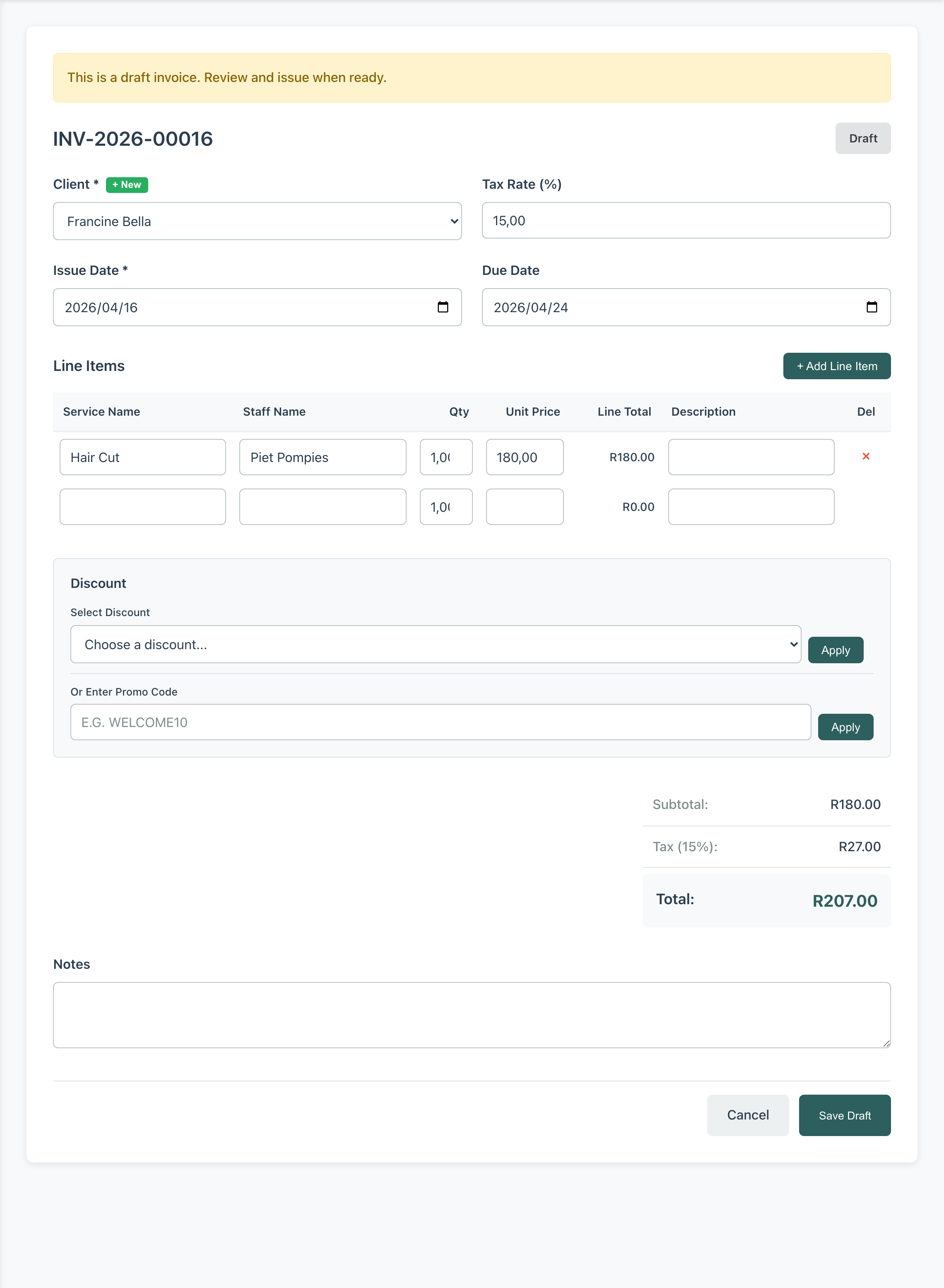
The one part of a Draft you cannot edit directly on the invoice is the snapshotted provider block – legal name, trading name, logo, billing address, tax IDs, footer text, payment instructions. Those were copied from your Company profile when the Draft was created. If your profile has changed and you want the new values on this invoice, the practical path is to void the Draft and create a new one; there is no in-place “refresh” action, because that would defeat the snapshot model.
Issuing the Invoice – What the Transition Actually Does
The Issue button is not just a UI label change. Before the status flips, Minuvox runs a short list of pre-issue checks. The status must currently be Draft. A business name must be present (snapshotted on the invoice or inherited from your company). A client must be assigned. At least one line item must exist. The issue date must be set. If any check fails, the button returns a clear error message, the invoice stays in Draft, and nothing is committed.
If the checks pass, Minuvox atomically increments the usage counters for any attached discount or promotion code and flips the status to Issued. From that moment, the Edit page refuses to load and the Dashboard’s Total Revenue metric counts this invoice toward its issue date’s period. Because the discount increment happens inside the same database transaction as the status flip, a discount can never be counted without an issued invoice, and an issued invoice with a discount can never have an uncounted usage.
Recording Payment
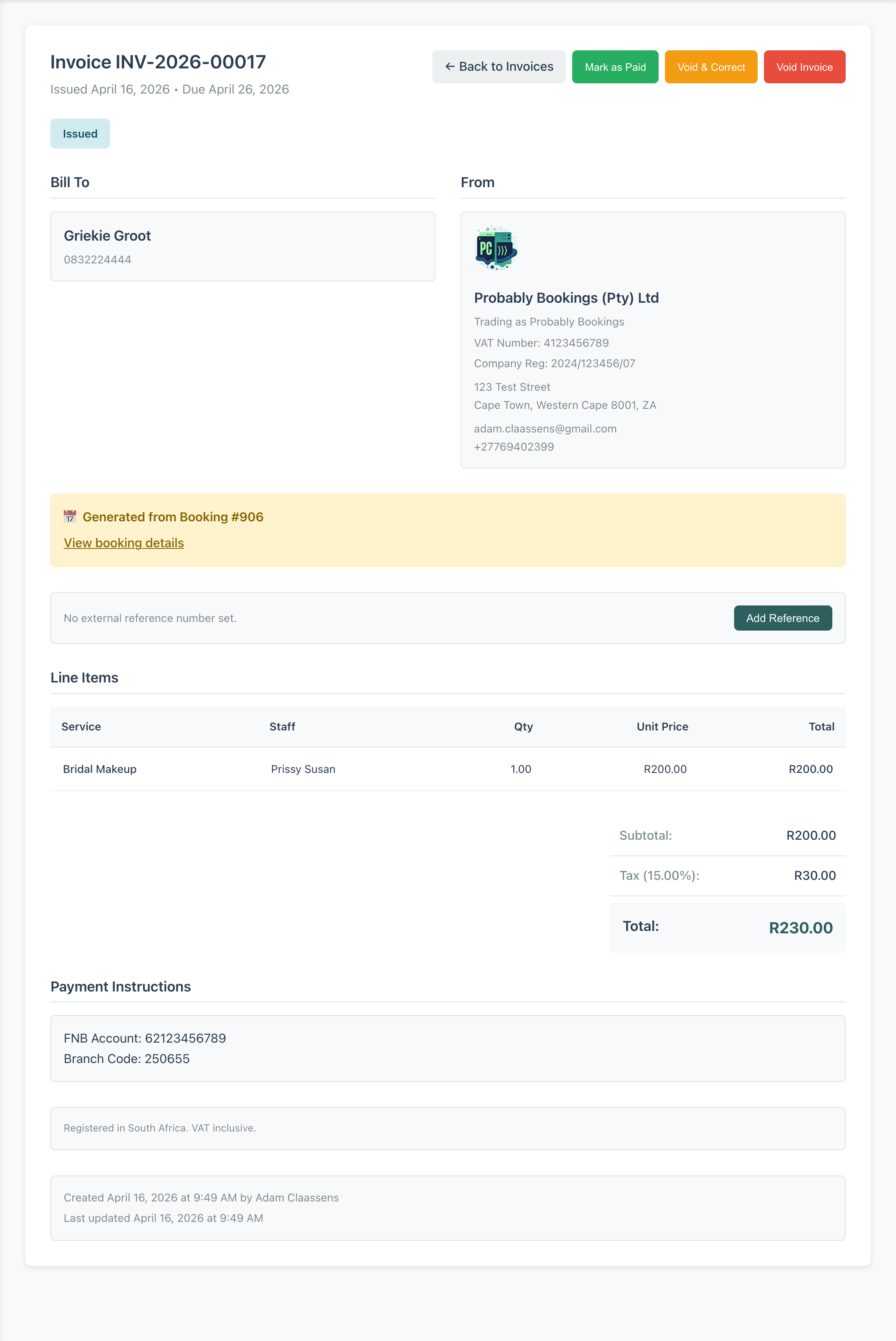
Mark as Paid is the transition from Issued to Paid. The modal captures an optional external reference number – a cheque number, a bank transaction ID, a POS receipt – and nothing else. In v1.6.3, the modal does not take a user-supplied payment date: the invoice record does not carry a separate invoice-level payment date field, so there is nothing on the invoice to capture.
When you confirm Mark as Paid, three things happen in one transaction. The invoice’s status flips to Paid. The external reference (if any) is saved. And if the invoice was created from a booking, that booking’s payment status becomes Paid, its payment date is set to the moment Mark as Paid was clicked, and its payment method is set to Invoice. A manual invoice with no linked booking updates only its own status and reference. Marking an already-Paid invoice is a no-op with an information message. Marking a Draft is refused (“Invoice must be issued before marking as paid.”). Marking a Void is refused (“Cannot mark voided invoice as paid.”).
Paid is the end state for an invoice that does not need correction. The detail page stops offering lifecycle controls – no Void button, no Void and Correct. A refund case that needs to be undone later is handled accounting-side, outside the invoice UI; the Paid record stays as the historical truth of what was billed and collected.
Voiding vs Void and Correct – Two Different Tools
The two correction paths have different intents; both preserve a full audit trail.
Void Invoice is the right tool when the invoice should not have existed at all – wrong client, duplicate, cancelled appointment that never happened. The Void modal asks for a reason, flips the status to Void, appends the reason to the notes as a Voided: line, and releases any discount usage slot the invoice had consumed. No replacement is created. The Void control is exposed for Draft and Issued invoices only (Drafts through the Discard button, Issued through Void Invoice); the Invoices list’s bulk Void action likewise targets Draft and Issued only.
Void and Correct is the right tool when the invoice was right in principle but wrong in the details – wrong price, missing line, wrong tax rate, wrong discount, wrong issue date. Void and Correct atomically voids the original and creates a brand-new Draft. The new Draft gets its own invoice number, copies the provider block, the client block, the line items, the due date, the internal notes, the tax rate, and any applied discount onto itself, and lands you on its Edit page. Both invoices stay in the record: the original as Void with the reason in its notes, the corrective as a Draft with its own fresh number.
Void and Correct is available only from Issued: on a Draft there is nothing to void and correct (just edit the Draft), and on Paid the control is not shown because a paid invoice represents money that has already changed hands.
Deleting a financial record is bad accounting practice. Minuvox treats voided invoices as first-class records so the audit trail is always complete and last quarter’s invoice list shows what was corrected and why.
The Invoice List as an Operational Dashboard
The Invoices page is where the lifecycle shows up at a glance. The status filter is the primary operational tool – Draft for what you have half-finished, Issued for what is waiting on payment, Paid for historical revenue, Void for recent corrections. Client is a separate filter with its own dropdown, and the search box matches invoice number or external reference number. Issue-date range filters and a CSV export of the current view round out the page. The four statuses you just read about are the spine of this list.
A Frozen Document with a Computed Total
A Minuvox invoice is a frozen document with a computed total and a four-status lifecycle, not a live view. Drafts are editable because they are not yet documents; Issued, Paid, and Voided invoices are frozen because they are. Provider and client blocks are snapshotted because historical accuracy matters more than tracking your current profile. Discounts count at Issue because that is the moment the invoice becomes real. Corrections go through Void and Correct because destroying records is bad accounting.
For the first-time walkthrough, How to Create Professional Invoices for a Service Business. If your billing profile is not configured, Setting Up Your Company Profile, Logo, and Business Hours is where to start – the provider block on every invoice comes from that page. For the onboarding rhythm that gets you to your first issued invoice, Your First Week with Minuvox; the broader toolset is at the feature overview.
About the author: Adam Claassens is the founder and developer of Minuvox. He designed the invoice lifecycle, wrote the snapshot-and-freeze model, and built every status transition described in this article, which is why the statuses, edit rules, and correction paths here match how the product actually behaves. Minuvox exists to make professional booking and invoicing tools accessible to small service businesses that cannot afford expensive monthly subscriptions.