A flat list of twenty services with no grouping is hard to scan, hard to filter, and hard to assign to staff. If you have ever scrolled past “Blow Dry” to find “Bridal Makeup” because everything is in one long alphabetical list, you already know the problem.
Minuvox uses categories to group related services together. Categories keep your service list readable, your calendar colour-coded, and your staff assignments manageable. This guide shows you how to plan your categories, create them, add services with accurate pricing and durations, and keep the whole setup clean as your business changes.
If you have not set up your Minuvox account yet, start with How to Set Up Online Booking for Your Salon – that guide covers registration, your first category, your first service, and your first booking.
How Categories Work in Minuvox
A category is a group of related services. Every service belongs to exactly one category. When you open the Services page, services are grouped by category – so “Hair” services appear together, “Nails” appear together, and so on. Within each category, services are sorted by display order (settable via CSV import) and then alphabetically by name.
Categories also affect how you assign staff. Instead of assigning a staff member to each service individually, you can assign them to an entire category. A stylist assigned to the “Hair” category can automatically perform every service in it – cuts, colour, treatments, blowdry, all of them. When you add a new hair service later, that stylist picks it up without you touching their profile.
This is a real time-saver once your service list grows. You can read more about staff assignments in the staff section of the setup guide.
Step 1: Plan Your Categories Before You Start
Before you click anything, take a few minutes to think about how your services group naturally. The right categories depend on your business.
Here are some examples:
Hair salon: - Hair (cuts, colour, treatments, styling) - Nails (manicure, pedicure, gel, acrylics) - Lashes & Brows (tinting, extensions, threading)
Barbershop: - Cuts (fade, buzz, scissor cut) - Grooming (beard trim, hot towel shave, facial)
Spa or wellness centre: - Massage (Swedish, deep tissue, hot stone) - Facials (cleansing, anti-ageing, hydrating) - Body Treatments (scrub, wrap, detox)
Beauty clinic: - Skin (chemical peels, microneedling, LED therapy) - Injectables (Botox, filler, PRP) - Laser (hair removal, pigmentation)
A few guidelines:
- Three to six categories is a good starting point. More than that and your dropdown filters start to lose their value. You can always split a category later if it grows too large.
- Name categories by what clients would recognise. “Hair” is better than “Department 1”. “Massage” is better than “Wellness Services Division”.
- One service, one category. A service cannot belong to two categories. If “Scalp Massage” could be either “Hair” or “Massage”, pick the one where clients would look for it first.
Step 2: Create Your Categories
- Click Services in the left sidebar
- Click Manage Categories (top right of the Services page)
- On the Service Categories page, click + Add Category
- Fill in:
- Category Name – required. For example, “Hair” or “Massage”. Category names must be unique within your company.
- Description – optional. A short note about what belongs in this category, useful if you have staff who manage the service list.
- Active – checked by default. Inactive categories will not appear in the category dropdown when you create a new service.
- Click Create Category
- Repeat for each category
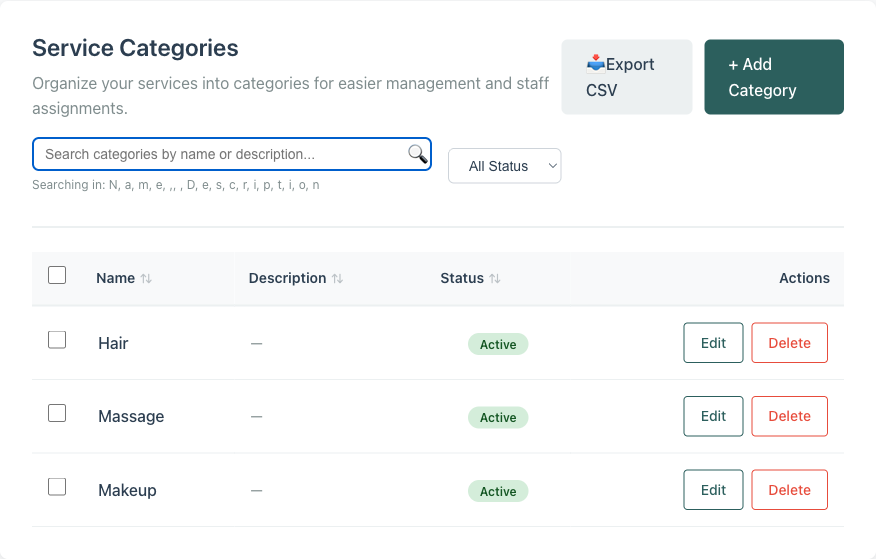
The category list shows each category’s name, description, and status. You can search, filter by status, sort by any column, and export the list to CSV.
Tip: Create all your categories before you start adding services. The service form’s category dropdown only shows active categories, so having them ready means you will not need to interrupt your flow to create one mid-service.
Step 3: Add Services to Each Category
With categories in place, you can add services.
- Click Services in the left sidebar (or click Back to Services from the categories page)
- Click + Add Service
-
Fill in the form:
-
Category – select the category this service belongs to. The dropdown shows only your active categories.
- Service Name – for example, “Women’s Cut and Blowdry” or “Full Set Acrylics”. Service names must be unique within your company.
- Description – optional. Useful if you offer variations or want to note what is included (“Includes wash, cut, and blowdry”).
- Duration (minutes) – how long this service actually takes. Be honest: if a colour service takes 90 minutes including processing time, enter 90. Underestimating durations leads to overlapping bookings and rushed appointments.
- Cost – the price you charge. Minuvox displays this using your company’s currency setting, so you do not need to add a currency symbol.
- Calendar Color – each service gets a colour on the calendar. Picking distinct colours per category (for example, warm tones for hair, cool tones for nails) makes your day view easier to scan at a glance.
- Shortcode – a short label (up to 10 characters) that shows on the calendar in compact view. When you type a service name, Minuvox suggests a shortcode automatically – you can accept it or type your own. For example, “WCB” for “Women’s Cut and Blowdry”. Shortcodes must be unique within your company.
-
Active – checked by default. Inactive services will not appear as options when creating a booking.
-
Click Create Service
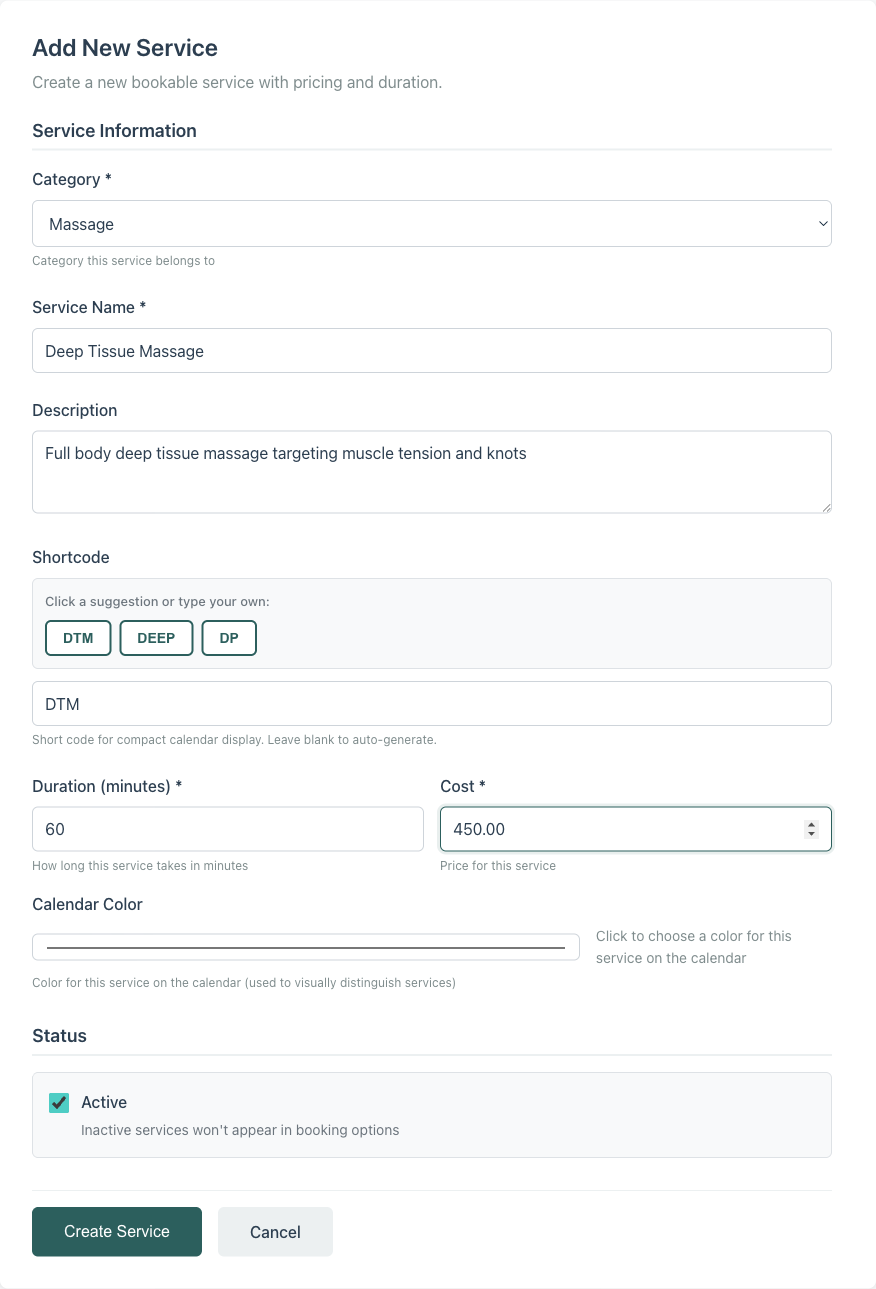
Repeat for each service. If you are entering many services at once, the CSV import (covered below) may be faster.
Duration matters more than you think. The calendar uses your service duration to calculate how much time each booking takes. If you enter 30 minutes for a service that actually takes 45, Minuvox will show the next time slot as available 15 minutes too early. Get the durations right and you avoid the most common booking conflict.
Step 4: Keep Your Service List Clean Over Time
Services change. Prices go up, new treatments get added, old ones get dropped. Here is how to manage that in Minuvox.
Editing a Service
On the Services page, click Edit next to any service to update its name, price, duration, category, or any other field. Click Update Service to save. Existing bookings for that service are not affected – they keep the details that were set when the booking was created.
Deactivating vs Deleting
When you stop offering a service, you have two options:
- Deactivate it: Edit the service and untick Active. The service disappears from booking options but stays in your records. Past bookings and invoices that reference it are unaffected. This is the safer option.
- Delete it: Click Delete on the Services page. This permanently removes the service. Use this only for services that were created by mistake and have no bookings.
The same applies to categories. Deactivate a category to hide it from the service form dropdown. Deleting a category deletes all services inside it, so use caution.
Filtering and Searching
The Services page has a search bar (searches by name, description, and shortcode), a status filter (Active, Inactive, or All), and a category filter. Use these to find services quickly as your list grows. Every column header is sortable – click it to sort ascending, click again for descending.
Importing Services from a Spreadsheet
If you have a long service list, typing each one into the form is tedious. Minuvox supports CSV import for both categories and services.
Go to Import in the left sidebar. You will see separate upload sections for Categories, Services, Clients, and Staff.
Import Categories First
Upload a CSV file with these columns:
| Column | Required | Notes |
|---|---|---|
| name | Yes | Category name (must be unique) |
| description | No | Category description |
| is_active | No | “true” or “false” (defaults to true) |
| display_order | No | Number for sort order (defaults to 0) |
Then Import Services
Upload a CSV file with these columns:
| Column | Required | Notes |
|---|---|---|
| name | Yes | Service name (must be unique) |
| category_name | Yes | Must match an existing category exactly |
| duration_minutes | Yes | Number, at least 1 |
| cost | Yes | Number (e.g. 350.00) |
| description | No | Service description |
| color | No | Hex colour code (e.g. #FF5733, defaults to #d1ecf1) |
| shortcode | No | Up to 10 characters (must be unique) |
| is_active | No | “true” or “false” (defaults to true) |
| display_order | No | Number for sort order (defaults to 0) |
The order matters. Categories must exist before you can import services that reference them. If a service row references a category name that does not exist, that row will fail with an error message telling you to import categories first.
Tip: If you already have your services in a spreadsheet or a paper menu, the fastest setup path is: create a simple CSV with the columns above, import categories, then import services. You can always edit individual services later through the UI.
Common Mistakes to Avoid
Too many categories. If you have 12 categories with 2 services each, your dropdown filters are not helping anyone. Combine small categories into broader groups. You can always split later.
Inconsistent pricing. If “Men’s Cut” costs R250 in one entry and “Mens Cut” costs R280 in another, you have two services for the same thing. Minuvox enforces unique names per company, so this only happens if the names differ slightly. Pick one name and stick with it.
Forgetting to assign staff. Creating services is only half the job. If no staff member is assigned to a service (or its category), that service will not show any available staff when you try to book it. After adding services, check that your staff profiles have the right assignments.
Underestimating durations. Round up, not down. A 45-minute service entered as 30 minutes will cause overlapping bookings on your calendar. Include buffer time if your staff needs a few minutes between clients.
Leaving test data active. If you created sample services during setup (“Test Service”, “Haircut 2”), deactivate or delete them before your first real booking. They will otherwise appear in your booking dropdown and clutter your reports.
About the author: Adam Claassens is the founder and developer of Minuvox. He built the platform to make professional booking tools accessible to small service businesses that cannot afford expensive monthly subscriptions.
This article was drafted with AI assistance and reviewed, fact-checked, and edited by the Minuvox team.